

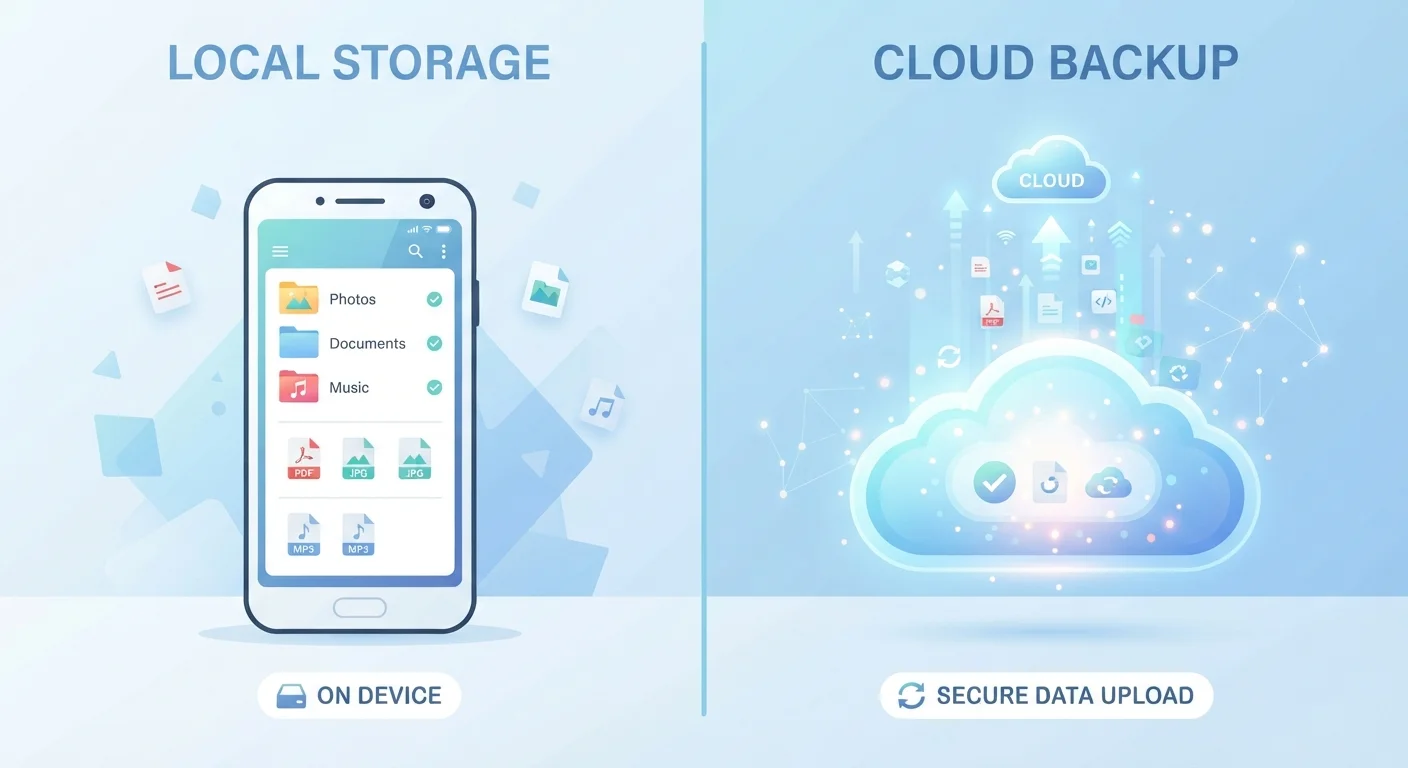
Key Takeaways
- On-device storage keeps files on your hardware; no internet needed to access them.
- Cloud storage saves files on remote servers, accessible from any connected device.
- Both options involve trade-offs around privacy, cost, capacity, and convenience.
- Many devices use both automatically - understanding which is which puts you in control.
- Losing a device doesn't mean losing files if cloud backup is active - but it comes with its own risks.
Our Verdict
Neither cloud nor on-device storage is universally superior - the right balance depends on how you use your devices, how much you value offline access, and how comfortable you are with data being held on remote servers. Most users benefit from a deliberate combination of both rather than relying exclusively on one.
| Best for | Recommended |
|---|---|
| Those who need files accessible without an internet connection | On-Device Storage |
| Those who want automatic backup and access across multiple devices | Cloud Storage |
| Those managing large media libraries on a tight budget | On-Device Storage |
| Those who frequently switch between phone, tablet, and computer | Cloud Storage |
What On-Device Storage Actually Means
On-device storage - sometimes called local storage - refers to the physical memory chips built into your phone, tablet, laptop, or computer. When you take a photo and it saves immediately without any loading indicator, that file is written directly onto your device's internal drive. No internet connection is involved.
This type of storage is fast and always available. You can access your files on a plane, in a basement, or anywhere else without a signal. The trade-off is that the capacity is fixed - a 128 GB phone can only hold so much, and once that space fills up, something has to go. If the device is lost, stolen, or damaged beyond repair, any files stored exclusively on it are gone too.
To better understand how storage capacity relates to your device's overall performance, see our explanation of RAM vs. storage - two specs that often get confused but serve very different roles.
What Cloud Storage Actually Means
Cloud storage means your files are transmitted over the internet and saved on servers maintained by a third-party company in a data center - sometimes thousands of miles away. Services that offer this include general-purpose options tied to operating systems and independent platforms that work across devices.
When you open a document on your laptop that you originally saved on your phone, cloud storage is what made that possible. The file wasn't on your laptop at all - it was pulled from the remote server the moment you opened it.
The practical upside is resilience: if your phone breaks, your photos still exist on those servers. The downside is dependency - you need a working internet connection to access files that exist only in the cloud, and you're trusting a company to keep those servers secure and available.
Check Where Your Backups Actually Go
Go into your phone's settings and look for backup or iCloud/Google account options. Many devices perform automatic cloud backups by default - confirming this is active means your photos and contacts are protected even if your device fails. Make a habit of checking this setting any time you get a new device.
For more on keeping your data safe across devices, practical smartphone security habits are worth reviewing alongside any storage decisions you make.
Key Differences at a Glance
Choosing between the two involves weighing several practical factors. The comparison below covers the dimensions most readers care about day-to-day.
| On-Device Storage | Cloud Storage | |
|---|---|---|
| Internet required | No | Yes, to sync or access remote-only files |
| Capacity limit | Fixed by hardware | Expandable, often for a fee |
| Access across devices | Manual transfer needed | Automatic with sign-in |
| Data survives device loss | No, unless backed up separately | Yes, files remain on servers |
| Privacy considerations | Files stay on your hardware | Files held by a third party |
| Ongoing cost | None after device purchase | Often subscription-based above free tier |
~90%
Smartphone users with automatic cloud backup enabled
Industry surveys consistently show the majority of smartphone owners have at least one cloud backup service active, often set up during initial device configuration.
15 GB
Typical free cloud storage tier
Many major cloud platforms offer around 15 GB at no cost before requiring a paid subscription for additional capacity.
How Most Devices Blend Both Without Telling You
Here's where things get genuinely confusing: most modern smartphones and computers use both types of storage simultaneously and switch between them without obvious signals. Your camera app might save photos locally by default while automatically uploading copies to a cloud service running in the background. You might think a file is only on your phone when it's actually in both places - or only in the cloud, with a lightweight placeholder on your device.
This blended approach is useful but worth understanding. If you delete a photo from your phone thinking it only exists there, a cloud backup may still hold a copy. Conversely, if you rely on cloud access and your subscription lapses, you may lose access to files you thought were safely stored.
If you want a deeper look at how your device manages data internally, our phone storage explainer walks through what those numbers on spec sheets really mean.
Don't Assume 'Synced' Means 'Backed Up'
Syncing a file to the cloud and backing it up are not always the same thing. Some services mirror your device - meaning if you delete a file locally, it disappears from the cloud too. Check whether your cloud service offers true versioned backups or just real-time sync, especially for documents you can't afford to lose.
Choosing the Right Balance for Your Needs
There's no single correct ratio of local to cloud storage. A few practical questions can help you figure out what works for your situation:
- Do you frequently work offline? Prioritize keeping critical files on-device.
- Do you use multiple devices regularly? Cloud storage makes file access seamless across them.
- How much do you value privacy? Local files don't leave your hardware unless you send them; cloud files are subject to a provider's terms and security practices.
- What's your backup plan? On-device-only storage with no backup is a single point of failure.
Most users settle into a practical hybrid: important files stored locally and backed up to the cloud, with less critical content living primarily in the cloud to save space. Understanding which files are where - and making that choice deliberately rather than by default - is what puts you in control of your data.