

Key Takeaways
- You need a smartphone, the speaker's companion app, and a working Wi-Fi network before you begin.
- Most smart speakers walk you through setup inside their dedicated app - no technical knowledge required.
- Your speaker's wake word (like "Hey Google" or "Alexa") is how you activate it without touching anything.
- Placing the speaker away from walls and appliances improves both sound quality and voice recognition.
- Privacy settings let you manage your voice history and microphone access after setup.
What you will need
What to Know Before You Start
Smart speakers are voice-activated devices that connect to the internet to answer questions, play music, set reminders, and - with additional compatible gadgets - control things around your home. If you're new to connected devices in general, our introduction to modern gadgets covers how these devices communicate and store data, which can help frame what's happening during setup.
Before you begin, confirm you have everything listed below ready to go. Setup typically takes between 10 and 25 minutes for a first-timer, and the process is almost entirely guided by the companion app - you won't need to configure anything manually.
What you will need
Companion App
Required to guide you through initial Wi-Fi pairing and account setup for your smart speaker.
Home Wi-Fi Router
Provides the internet connection the speaker needs to function and receive voice commands.
Smartphone or Tablet
Used to run the companion app and complete the setup process.
Step-by-Step Setup
Follow these steps in order. The app does most of the work - your job is to supply your Wi-Fi credentials and make a few simple choices about placement and naming.
Download the companion app and sign in
Every major smart speaker - whether it uses Alexa, Google Assistant, or Siri - requires a companion app on your phone to complete setup. Search your device's app store for the app that matches your speaker's brand. You'll need an account with that platform (Amazon, Google, or Apple). If you don't have one, you can create it during this step. Sign in before you plug in the speaker.
Plug in the speaker and wait for the startup signal
Connect the speaker to a power outlet using the included cable and adapter. After a few seconds, it will emit a chime or display a light ring - this indicates it's in setup mode and ready to be found by your phone. The exact signal varies by device, so check the quick-start card that came in the box if you're unsure what to look for.
Open the app and add a new device
Inside the companion app, look for an option like Add Device, Set Up a New Device, or a + button. The app will search for the speaker nearby using Bluetooth or a temporary Wi-Fi signal. Follow the on-screen prompts - the app will detect your speaker automatically in most cases. If it doesn't appear, make sure your phone's Bluetooth is enabled.
Connect the speaker to your Wi-Fi network
The app will prompt you to select your home Wi-Fi network and enter the password. Choose your network name from the list and type in the password carefully - Wi-Fi passwords are case-sensitive. Once entered, the speaker will attempt to connect. A successful connection is usually confirmed by another chime or a change in the light ring color.
Choose a room location and name the device
The app will ask you to assign the speaker to a room (for example, "Living Room" or "Kitchen"). This matters if you plan to add more smart devices later, as it helps group them logically. Give the speaker a clear, simple name - you'll use it in voice commands when controlling specific speakers in a multi-room setup.
Test your speaker with a voice command
Say the wake word out loud - "Alexa," "Hey Google," or "Hey Siri" - followed by a simple question like asking for the time or the weather. If the speaker responds correctly, setup is complete. If it doesn't react, check that the microphone isn't muted (most speakers have a physical mute button) and that the speaker is not too far away.
Best Spot for Your Speaker
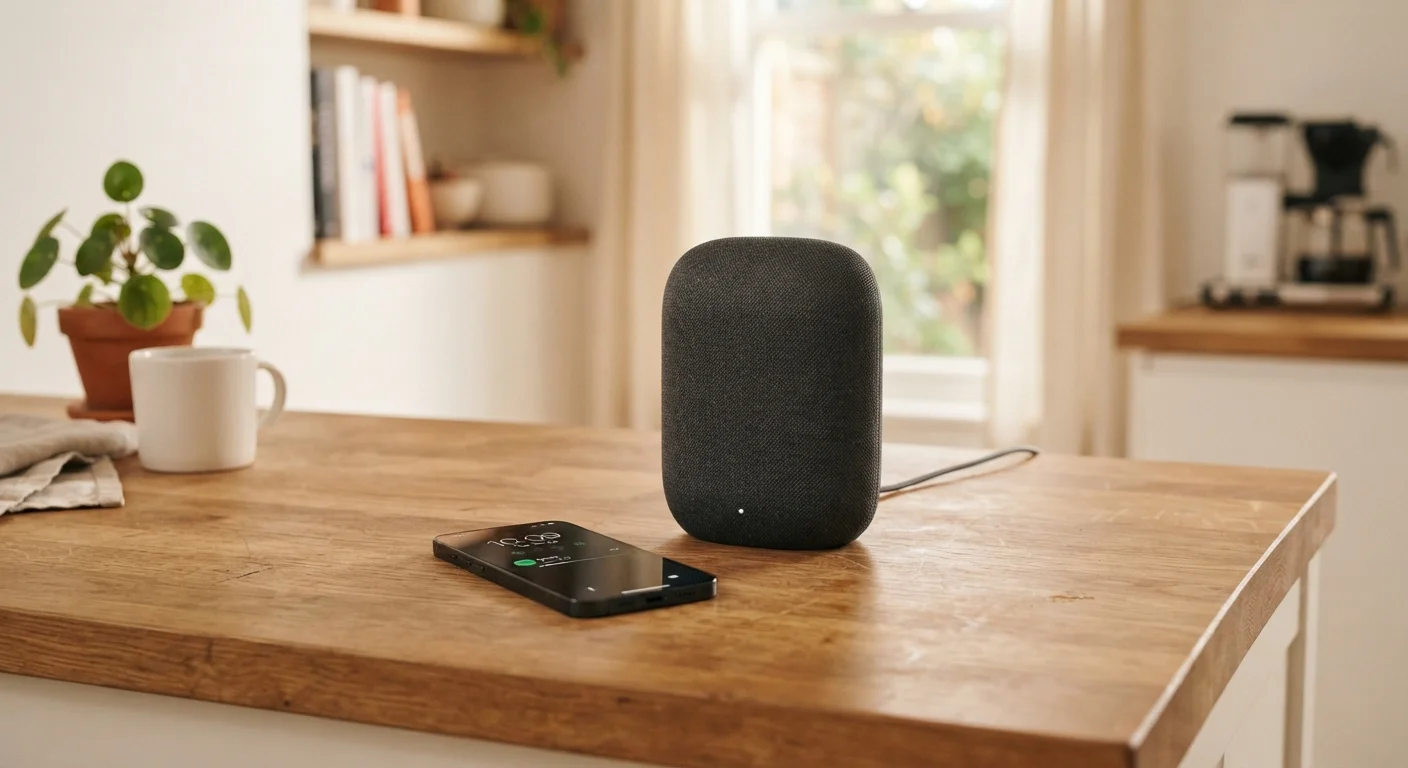
Place your smart speaker on an open surface, away from corners, walls, and appliances like microwaves that can interfere with Wi-Fi signals. A central location in a room generally gives the best voice recognition range and sound quality. Avoid placing it directly next to a TV or music source, which can confuse the microphone.
After Setup: Privacy and Next Steps
Once your speaker is working, spend a few minutes reviewing its privacy settings inside the companion app. Most platforms let you manage your voice history, delete past recordings, and restrict what data is retained. These settings are worth understanding - your speaker's microphone is always listening for the wake word, even when you're not actively using it.
Your Microphone Is Always Listening
Smart speakers are designed to respond the moment they hear the wake word, which means the microphone remains active at all times. Review the privacy controls in your companion app to understand what voice data is stored and for how long. Most platforms allow you to delete your voice history and limit data retention - it's worth taking five minutes to configure these settings after setup.
If you're thinking about adding more smart devices to your home, be aware that different speakers operate within different ecosystems - Alexa, Google Home, and Apple HomeKit don't all work together seamlessly. Our article on smart home ecosystems explains why this happens and how to plan around it before you invest in more hardware. For a broader look at getting started, see our beginner's guide to smart home devices.